
Test Runs and Test Results
BASIL test infrastructure is based on the tmt project.
tmt is the acronym of Test Management Tool.
It’s a python module that provide an abstraction layer to be able to interact and execute any kind of test suites, regardless of the programming language they are implemented in. Moreover it provides provisioning features to be able to execute the desider tests against vaiours test environments such as container, virtual machines or physical hardwares.
To summarize, if you want to run a test from BASIL you need to create an fmf file for your test that describes its entrypoint and dependencies in terms of required packages and libraries.
Starting from version 1.5, BASIL is extending its testing capabilities to external infrastructures. Main reason behind that is that, sometimes, a company or an open source project introduces a tool like BASIL in the middle of the development. That means they already have their own test infrastructure configured and with high probability its a complex one. So, instead of asking for a migration effort, we can leverage existing test infrastrucutre and just link external test results to BASIL Test Cases to estabilish the required traceability matrix.
What is actually supported?
Plugin |
Trigger Monitor and Trace |
Filter and Trace |
Test Infrastructure |
|---|---|---|---|
tmt |
Yes |
Yes |
Embedded |
Testing Farm |
Yes |
No |
External |
Gitlab CI |
Yes |
Yes |
External |
Github Actions |
Yes |
Yes |
External |
KernelCI |
No |
Yes |
External |
LAVA |
Yes |
Yes |
External |
Trigger, Monitor and Trace: Trigger test execution on the external test infrastructure, follow the test execution and trace the test result to a BASIL Test Case.
Filter and Trace: Navigate and filter test results executed on the external test infrastructure and trace them to a BASIL Test Case.
tmt
BASIL internal test infrastructure is based on tmt a Test Management Tool.
tmt introduce a level of abstraction that allow BASIL to run any kind of test.
To be able to run a test you have to specify the git repository where the test lives and that repo should implement tmt. What that does mean? You need to run the
tmt init
command in the root folder of your repo to create the needed metadata!
Your git repository can host thousands of tests, so how you can specify which one you are looking for? You can describe each test with an fmf metadata file. On doing so you can add several information like a description, tags, an expected duration, required libraries and packages, the test entry point and so on. See the tmt documentation for all the details.
Once you created a test fmf metadata file you can verify it using the following command:
tmt lint
What is missed here? We need to specify where the test lives inside the repo. On doing so we can ask tmt to list all the tests and check what value we should specify for the relative path field in BASIL.
tmt test ls
Pay attention that tmt works with string matching, so, if you look at the following example:
/testcases/library_x/functionality_a/test_1
/testcases/library_x/functionality_a/test_2
/testcases/library_x/functionality_b/test_1
/testcases/library_x/functionality_c/test_1
/testcases/library_y/functionality_a/test_1
you can run test_1 of functionality_a of library_x specifying the relative path:
/testcases/library_x/functionality_a/test_1
or you can run all tests of functionality_a of library_x using:
/testcases/library_x/functionality_a
or you can run all tests of functionality_a of library_x and library_y using:
functionality_a
If you’d like to implement a 1:1 relation you can also specify a regex like:
^/testcases/library_x/functionality_a/test_1$
That will help you on scaling and modifying the structure of your test repository folders without affecting BASIL work items definitions.
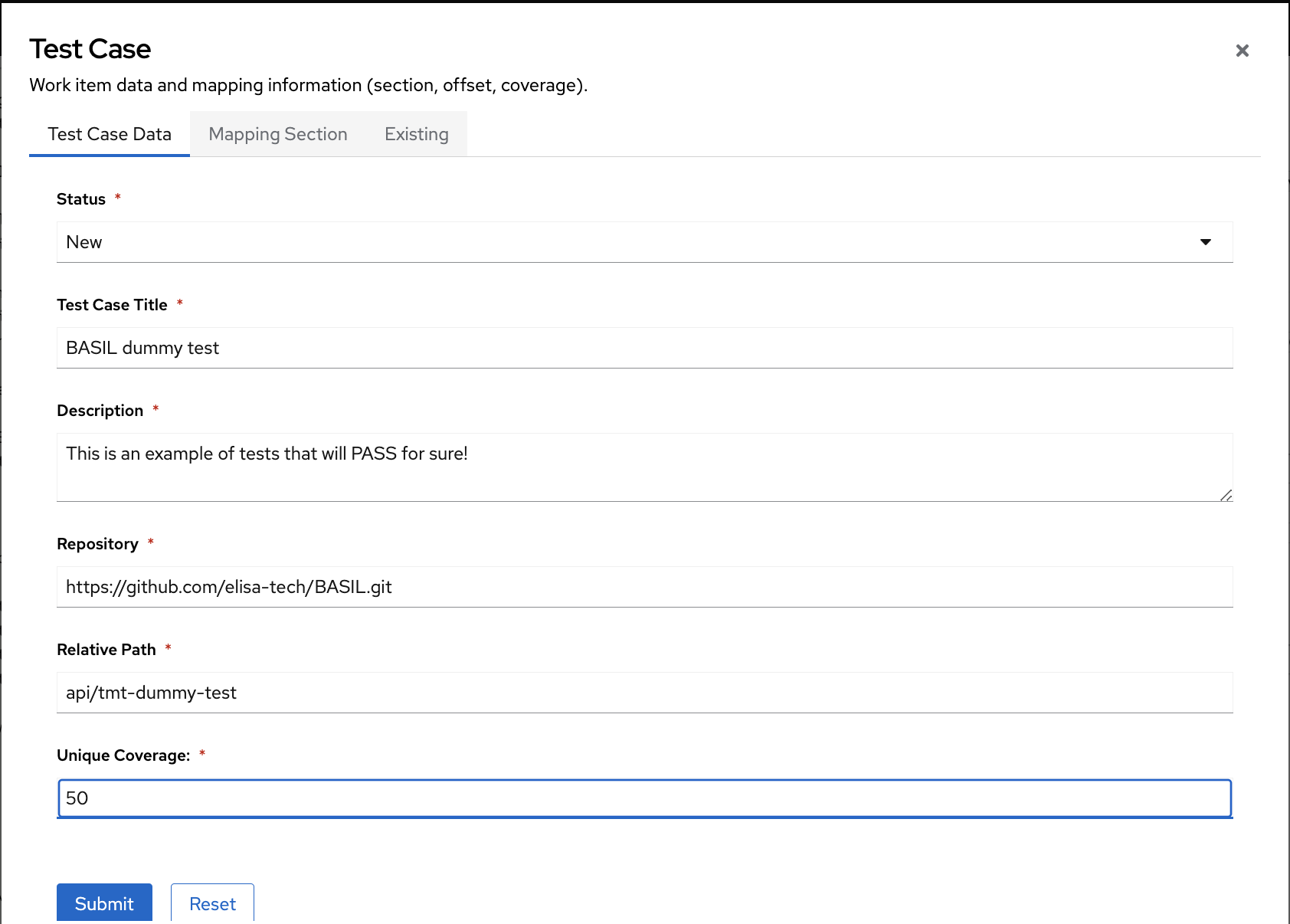
# BASIL tmt plan
To run a test with tmt we need to specify a tmt plan.
A tmtm plan is an fmf file that describes which tests we want to run, which preparation and finish steps we want to apply to the System Under Test, which report we want to generate and more.
In a tmt plan we can filter tests from git repositories with different criteria under the discover statement.
To let tmt able to discover any test in BASIL, we created a general purpose tmt plan.
It is available at BASIL/api/tmt-plan.fmf.
It is using environment variables to describe the git repository url, the branch and then relative path and those variable are passed by the test plugin BASIL/api/testrun_tmt.py
If all your tests need to apply some preparation/finish steps you can extend this BASIL/api/tmt-plan.fmf accordingly.
Test Run
You can run a test clicking on the “Run” button in the Test Case menu. A modal window will show up to let you able to configure the run. You can specify a title and add your notes, mostly to be able to identify it later.
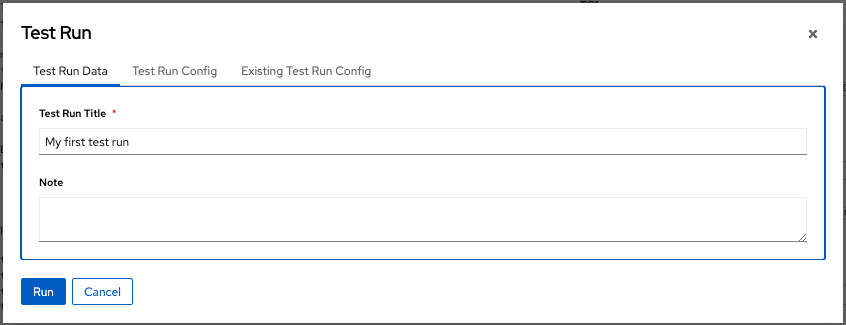
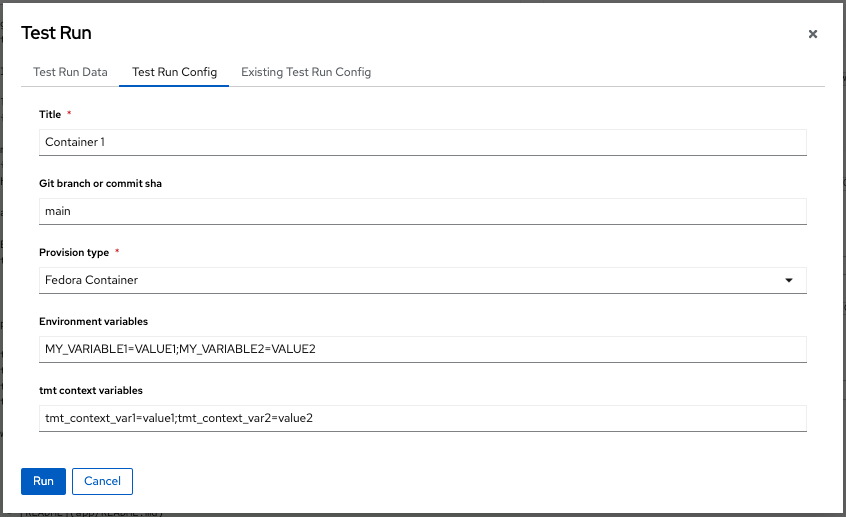
Once you defined the test run title is time to specify the test run configuration. You can create a new one or re-use an existing one.
BASIL tmt plugin supports 2 different provisioning types:
Container
Remote machine via SSH
To be able to run a test in a Container (Fedora or Debian depending on your deployment) you should deploy BASIL following the instruction provided in How to run it. We will see in details both provisioning types, but let take a look to other fields that you can specify in this page.
Title
Git branch or commit sha (of the git test repository)
Environment variables (to allow you to enable different logic on the test side)
tmt context variables (to allow you to enable different logic in the tmt test)
- Pay attention that BASIL is automatically exporting some environment variables that you can leverage in you tmt test:
basil_test_case_id: ID of the Test Case
basil_test_case_title: Title of the Test Case
basil_api_api: Name of the Sw component (api)
basil_api_library: Library of the Sw Component
basil_api_library_version: Library Version of the Sw Component
basil_test_case_mapping_table: Parent Type of the Test Case
basil_test_case_mapping_id: Parent ID of the Test Case
basil_test_relative_path: Relative Path of the Test Case inside the test repository
basil_test_repo_path: Path of the Test Case repository
basil_test_repo_url: Url of the Test Case repository
basil_test_repo_ref: Ref (branch or commit sha) of the Test Case repository
basil_test_run_id: UID of the Test Run
basil_test_run_title: Title of the Test Run
basil_test_run_config_id: ID of the Test Run Configuration
basil_test_run_config_title: Title of the Test Run Configuration
basil_user_email: Email of the User that created the Test Run
Any other environment variable can be added by default in your BASIL instance customizing the api/testrun_tmt.py file at TestRunnerTmtPlugin() class initialization.
# tmt Test in Container
Using the tmt plugin, user can run tests against a Container. The default container is: * fedora if BASIL has been deployed using Containerfile-api-fedora * debian if BASIL has been deployed using Containerfile-api-debian
That is possible thanks to the package tmt[provision-container].
# Test via SSH
To be able to run your test against a remote machine via SSH you need to specify following parameters:
Hostname or IP address
SSH Port
SSH Private Key
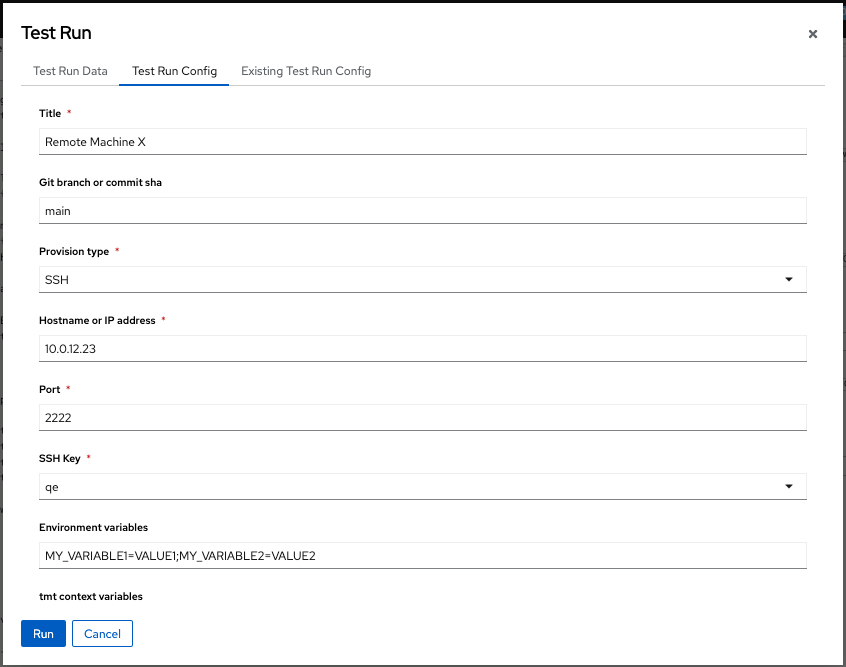
You can select the SSH Private Key from a menu that will list all the keys that you have specified in your user profile. You can reach the SSH Keys management page clicking on the avatar icon on top right of the page or using the side menu.
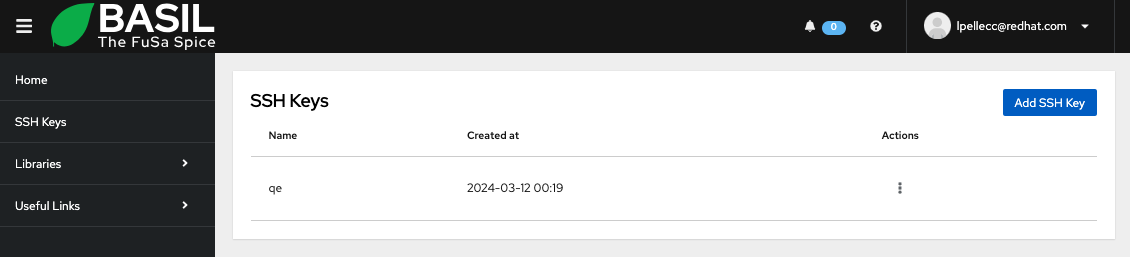
Once ready, press Run.
Gitlab CI
You can use BASIL to run a test in your gitlab pipeline. On doing so you can specify a gitlab ci plugin preset as done in the following example:
gitlab_ci:
  - name: lpellecc-ci-training
    url: https://www.gitlab.com/
    git_repo_ref: main
    project_id: 64922856
    trigger_token: !ENV ${GITLAB_CI_64922856_TRIGGER_TOKEN}
    private_token: !ENV ${GITLAB_CI_64922856_PRIVATE_TOKEN}
    stage: test
    job: unit-test-job
    env:
      var1: value1
      var2: value2
- Note: name, url, git_repo_ref, trigger_token, private_token are mandatory fields.
If you specify the stage statement, the plugin will check that all the jobs of that stage succeded. If you specify the stage statement and job statement, the plugin will check that, the job you selected is part of the selected stage and the job succeded. Filtering external test results, updated_after and updated_before fields format is YYYY-MM-DD.
You can use the same plugin preset configuration to navigate pipelines execution and trace a test run to your BASIL test case. On doing that you can apply additional filters.
Click the Test Case menu and then Test Results. Oce the Test Results modal appears, select the tab External Test Runs. Then select the gitlab ci plugin and then the desired preset. Apply additional filter if needed and click Add Filter. Once you have all the filter in place, click Search.
You can open the gitlab pipeline details page by clicking on the link provided on each line. Once you identified the right test run, you can click on import to trace it to your test case.
GitHub Actions
You can use BASIL to run a test in your github pipeline. On doing so you can specify a github actions plugin preset as done in the following example:
github_actions:
  - name: basil-test
    url: https://www.github.com/elisa-tech/BASIL
    git_repo_ref: main
    private_token: !ENV ${GITHUB_ACTIONS_BASIL_PRIVATE_TOKEN}
    workflow_id: build.yaml
    job: test
    inputs:
      uuid: XXX-YYY-ZZZ
- Note: name, url, git_repo_ref, private_token, workflow_id are mandatory fields.
If you specify the job statement, the plugin will check that, the job you selected succeded. Otherwise the plugin will check that all the jobs of the pipleine succeded. If your pipeline need some inputs, you can add them under the inputs statement. Pay attention that github only accept inputs configured in the repository. If you add input not supported the trigger can fail.
To change the run name using the uuid variable from the inputs statement, you can configure your workflow as following:
name: ci
run-name: ci [${{ inputs.uuid && inputs.uuid || 'N/A' }}]

on:
  push:
  workflow_dispatch:
    inputs:
      uuid:
        description: 'Unique ID'
        required: false
You can use the same plugin preset configuration to navigate pipelines execution and trace a test run to your BASIL test case. On doing that you can apply additional filters.
Click the Test Case menu and then Test Results. Oce the Test Results modal appears, select the tab External Test Runs. Then select the gitlab ci plugin and then the desired preset. Apply additional filter if needed and click Add Filter. Once you have all the filter in place, click Search.
You can open the github actions pipeline details page by clicking on the link provided on each line. Once you identified the right test run, you can click on import to trace it to your test case.
KernelCI
KernelCI is a community-based open source distributed test automation system. It is focused on the upstream kernel development and the test execution is CI oriented. That means the tests are triggered on commit.
From BASIL a user can navigate the KernelCI Database to be able to select the desired test run to link to a Test Case.
On doing so you can specify a plugin preset in your BASIL instance as the following:
KernelCI:
  - name: production
    url: https://kernelci-api.westus3.cloudapp.azure.com/latest
    private_token: !ENV ${KERNEL_CI_PROD_TOKEN}
- Note: name, url and private_token are mandatory fields.
created_after and created_before fields format is YYYY-MM-DD
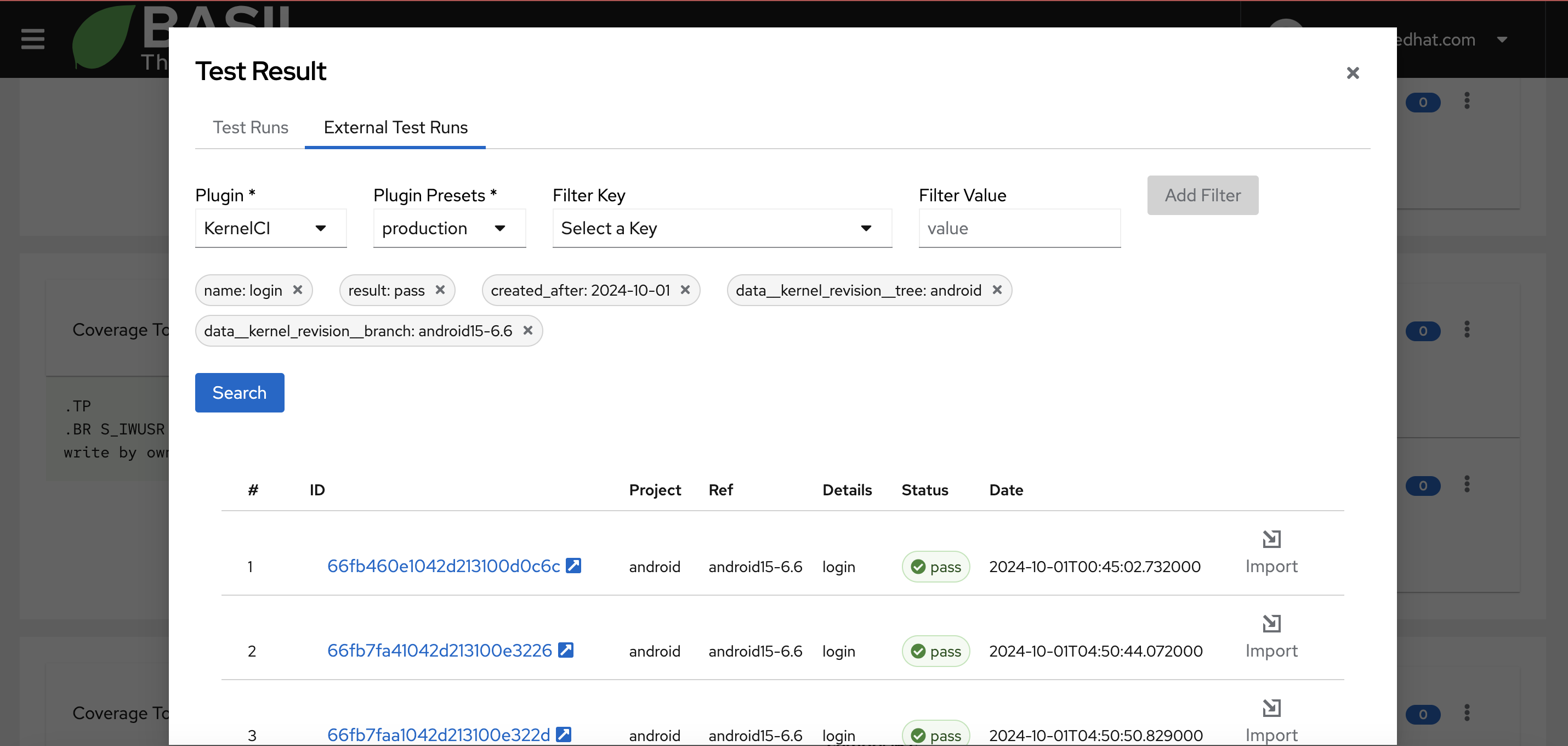
Testing Farm
Testing Farm is an open-source testing system offered as a service. It has been designed and is maintained by Red Hat. Testing Farm uses tmt as Test Management tool. That means that each tests should be described by an fmf metadata file and tests should be collected in tmt plans.
To learn more about Testing Farm, refer to the official Testing Farm documentation.
Useful link: Testing Farm repository
You can use BASIL to run a test against Testing Farm. On doing so you can specify a plugin preset in your BASIL instance as the following:
testing_farm:
  - name: public_ranch
    arch: x86_64
    compose: Fedora-40
    private_token: !ENV ${TESTING_FARM_API_TOKEN}
    url: https://api.dev.testing-farm.io/v0.1/requests
    context:
      context_variable1: value1
      context_variable2: value2
    env:
      environment_variable1: value1
      environment_variable2: value2
Note: name, arch, compose, private_token and url are mandatory fields.
By default, BASIL will use the general purpose tmt plan avaiable at api/tmt-plan.fmf. This plan is using environment variables to specify the git repository, the branch and the tmt test name as following:
- discover+:
  - name: General purpose discover
    how: fmf
    url: $basil_test_repo_url
    ref: $basil_test_repo_ref
    test:
      - $basil_test_relative_path
Those variables are automatically populated by BASIL plugin from the Test Case information as:
` basil_test_repo_url = test_case.repository basil_test_relative_path = test_case.relative_path
basil_test_repo_ref = From Preset or From Test Run Connfiguration as per user needs `
LAVA (Linaro Automated Validation Architecture)
You can use BASIL to run a test on a LAVA instance. On doing so you can specify a LAVA plugin preset as done in the following example:
LAVA:
- name: local_lava_instance
  url: http://localhost:8080/api/v0.2
  job: custom-lava-job.yaml
  private_token: !ENV ${LAVA_LOCAL_INSTANCE_PRIVATE_TOKEN}
  env:
    var1: value1
    var2: value2
- Note: name, url, private_token are mandatory fields.
If you do not specify the job statement, the plugin will use the default api/lava-job.yaml job file.
You can also specify your test run configuration manually and reuse it on each future test run. On doing so you can also select a job file from User Files sections. Pay attention that BASIL will filter over YAML files as it is the expected extension.
BASIL will extends the Job file adding a definition for your test case using the url of the repository and the relative path you specify as part of the work item (Test Case) information.
You can use the same plugin preset configuration to navigate jobs executed on your LAVA instance and trace a test run to your BASIL test case. On doing that you can apply additional filters.
Click the Test Case menu and then Test Results. Oce the Test Results modal appears, select the tab External Test Runs. Then select the LAVA plugin and then the desired preset. Apply additional filter if needed and click Add Filter. Once you have all the filter in place, click Search.
You can open the LAVA Job details page by clicking on the link provided on each line. Once you identified the right test run, you can click on import to trace it to your test case.
Postponed execution
User can postpone a test execution (across all the plugins that support test execution) using the environment variable delay. Value for the delay variable must be integer and unit minutes is used.
Test Results
# Bugs
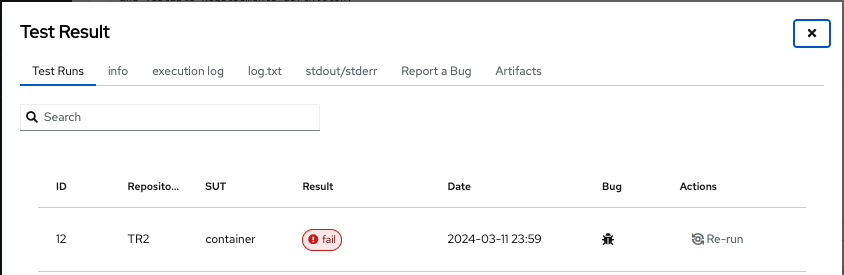
# Artifacts
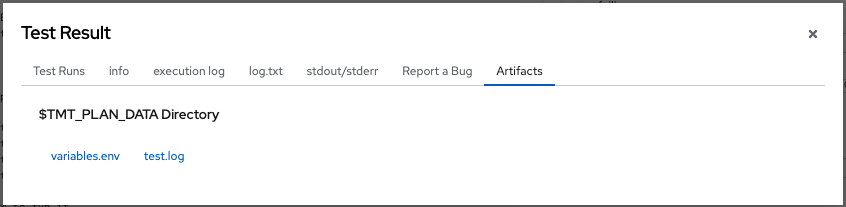
In the Artifacts tab you will see the list of all the files that are generated by the test in the $TMT_PLAN_DATA folder.
So if you need to collect a particular evidence, you can copy it, during the test execution, in the location provided by that environment variable that will be automatically generated by tmt.
User Roles
Not all the users can request a test execution in BASIL and that depends on the user Role.
Let see all the roles and their permissions in regard of the test execution:
ADMIN:
can access the Test Result information if have read permission to the Software Component.
can request a Test Run and edit Note and Bugs if he has read/write permission to the Software Component.
GUEST:
can access the Test Result information if has read permission to the Software Component.
USER:
can access the Test Result information if has read permission to the Software Component.
can request a Test Run and edit Note and Bugs if he has read/write permission to the Software Component.