
How to run it
Architecture
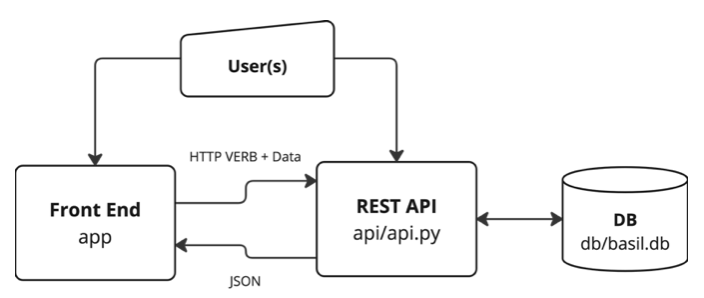
BASIL consists of three pieces:
A Web Rest API
A Web Front End Application
A Database (default postgreSQL)
Podman Containers
run_demo.sh is a script that can be used to deploy a BASIL instance. It comes with a default configuration but relevant parameters can be changed using different arguments. To see all the possible parameters that can be changed, run the following command:
./run_demo.sh -h
Here and example command to deploy BASIL using Debian on a Raspberry Pi that is available at the ip 192.168.1.13 in a local netowork with API running on port 5005, APP running on port 9005, and admin password eqaul to dummy_password
sudo ./run_demo.sh -b 5005 -f 9005 -d debian -p 'dummy_password' -u http://192.168.1.13
Here and example command to deploy BASIL for evaluation on localhost with default configuration.
sudo ./run_demo.sh
In this case API will run on port 5000, APP on port 9000 and admin default password is 1234.
It is also possible to injet environemnt variables selecting an .env file with the -e option. In the following example we are injecting all the environment variables defined in the prod.env file into the container running the api:
sudo ./run_demo -b 5005 -f 9005 -d debian -p 'dummy_password' -u http://192.168.1.13 -e prod.env
Those environment variables can be used by an admin user to populate test plugin preset configuration variables and general tool setting as the email server password.
BASIL can be also deployed manually building Containerfile-api-fedora (or Containerfile-api-debian) and Containerfile-app provided as part of the source code.
# Build the Containers
The API project can be built using the Containerfile-api-fedora (or Container-file-debian) file.
This process will also initialize the database. BASIL default configuration will start the api project on the port 5000 and will create an ADMIN user with name admin and password admin.
podman build \
   -f Containerfile-api-fedora \
   -t basil-api-image-default .
You can customize your container, configuring a different port and admin password using following build arguments:
API_PORT (default is 5000)
ADMIN_PASSWORD (default is admin)
Here an example of a build command for a custom container:
podman build \
   --build-arg="ADMIN_PASSWORD=your-desired-password" \
   --build-arg="API_PORT=1234" \
   --build-arg="DB_PORT=your-desired-db-port-default-5432" \
   --build-arg="DB_PASSWORD=your-desired-db-password" \
   -f Containerfile-api-fedora \
   -t basil-api-image .
At the same way you can build the APP project using Containerfile-app
The default configuration will start the web application on the port 9000 and will try to communicate with the api project on the port 5000.
podman build \
   -f Containerfile-app \
   -t basil-app-image-default .
You can customize your container specifying a differnt api endpoint and application port using the following build arguments:
API_ENDPOINT (e.g. http://api-server-it:yourport)
APP_PORT
podman build \
   --build-arg="API_ENDPOINT=http://api-server-url:yourport" \
   --build-arg="APP_PORT=yourport" \
   -f Containerfile-app \
   -t basil-app-image .
NOTE: API_ENDPOINT must start with http
# Volumes
In order to keep persistent data across deployments you can specify following volumes:
podman volume create basil-configs-vol
podman volume create basil-db-vol
podman volume create basil-ssh-keys-vol
podman volume create basil-tmt-logs-vol
podman volume create basil-user-files-vol

podman volume mount basil-configs-vol
podman volume mount basil-db-vol
podman volume mount basil-ssh-keys-vol
podman volume mount basil-tmt-logs-vol
podman volume mount basil-user-files-vol
# Start the Containers
You can start the api default container above created with the following command:
podman run \
  -d \
  --privileged \
  --network=host \
  basil-api-image-default
Here an example of usage of volumes:
podman run \
  -d \
  --privileged \
  --network=host \
  -v "basil-configs-vol:/BASIL-API/api/configs" \
  -v "basil-ssh-keys-vol:/BASIL-API/api/ssh_keys" \
  -v "basil-user-files-vol:/BASIL-API/api/user-files" \
  -v "basil-tmt-logs-vol:/var/tmp/tmt" \
  basil-api-image
the --privileged options is needed to be able to run fedora (or debian) container as a possible testing environment inside api container.
You can start the app default container above created with the following command
podman run \
   -d \
   --network=host \
   basil-app-image-default
Starting from BASIL 1.8.0 the default database is postgreSQL. To start a postgreSQL conainer you can run the following command:
podman run \
   --detach \
   --name your-desired-container-name \
   -e POSTGRES_USER=basil-admin \
   -e POSTGRES_PASSWORD=your-desired-db-password \
   -e POSTGRES_DB=basil \
   -v basil-db-vol:/var/lib/postgresql/data \
   docker.io/library/postgres:15
# Check Containers Status
You can list running containers with the following command
podman ps
# Inspect an Image
You can inspect an image overriding the –entrypoint
podman run \
   --interactive \
   --tty \
   --network=host \
   --entrypoint=/bin/bash <YOUR IMAGE>
# Backup BASIL DB from Container
You can generate a dump of you database using
PGPASSWORD=your-db-password pg_dump \
   -h localhost \
   -p 5432 \
   -U basil-admin \
   -F c \
   -d basil \
   -f backup.dump
or you can backup the podman volume if you have configured it
podman volume export basil-db-vol --output basil-db-vol_$(date '+%Y%m%d_%H%M').tar
We also provide a cronjob in the misc/cronjobs/daily folder that can be installed in the /etc/cron.daily folder of the machine running the api container to automatically backup the database volume each day.
# Stop Containers
You can stop running containers, the one that you can see listed with the ps command using the following syntax:
podman stop <NAME OF THE API CONTAINER>
podman stop <NAME OF THE APP CONTAINER>
podman stop <NAME OF THE DB CONTAINER>